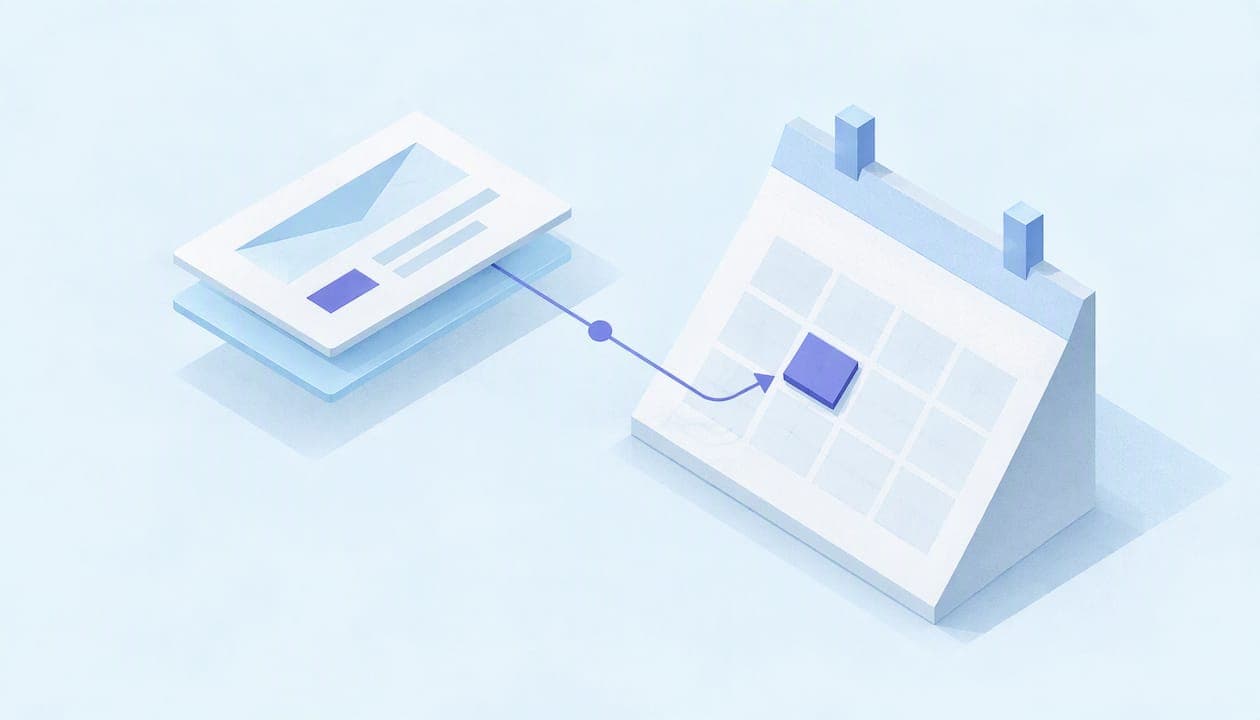
The fastest way to add an email event to Google Calendar depends on the email. If it is a reservation or ticket confirmation, Gmail may add it for you. If it is a regular message, open it, click More, then Create event. If the details sit in a PDF, an image, a forwarded thread or a non-Gmail inbox, capture them from the screen. This guide covers each route, when it fails and how to stop deadlines from getting buried in your inbox.
TL;DR
- Gmail adds some events on its own, but only supported types such as flights, hotel and restaurant bookings, and ticketed events.
- For everything else in Gmail, use More > Create event. Google copies the subject and message text into the new event.
- Automatic extraction is off by default in the EEA, Japan, Switzerland and the UK. You can switch it on in settings.
- Emails sent to a mailing list, or where you are only cc’d, are not added automatically.
- For PDFs, images and other mail apps, a screenshot-based tool like Yotei turns what you see into a reviewed calendar entry.
Table of Contents
- Method 1: Let Gmail add events automatically
- Method 2: Create the event manually from a Gmail message
- Method 3: Use Gemini in Gmail
- Method 4: Import an invitation file
- When the invitation went to another address
- Why emails still slip through
- Method 5: Capture the event from your screen
- Which method fits which email
- Our perspective
- Add emailed events in one click with Yotei
- A simple routine to stop missing email events
- FAQ
- Sources
Method 1: Let Gmail add events automatically
Gmail can detect certain emails and put them on your calendar without any action. Google Calendar Help says this covers flight, train and bus reservations, hotel and restaurant reservations, and events with registration confirmations or tickets, including movies, shows and medical appointments.
Two settings control it. Smart features in Google Workspace must be on, and “Show events from Gmail” must be checked in your Google Calendar settings. Google’s own guidance says to check those two settings first when an event does not show up.
Where it is off by default
The feature is on for most users. Google states it is off by default for residents of the European Economic Area, Japan, Switzerland and the UK. If you live in one of those places, or an admin has restricted your account, turn it on yourself in settings before assuming something is broken.
When Gmail will not add an event
Google lists the cases where automatic events do not appear:
- The email was sent to a mailing list.
- You were only cc’d.
- The email was redirected from another account.
- The email was not a supported reservation or ticket confirmation.
That last point matters most. A message that says “Team offsite is Thursday the 14th at 2 pm in the Harbor Room” is not a reservation, so Gmail will not touch it. A dentist reminder in plain text might not qualify either. Most of the events people lose track of fall into this category.
You can delete any event Gmail added, or turn off the automatic behavior in calendar settings, per Google Calendar Help. On Android you can also use “View source email” to see which message created an event.
Method 2: Create the event manually from a Gmail message
This works for any email, detected or not. On a computer:
- Open the message in Gmail.
- Click More (the three dots) above the message.
- Select Create event.
- A Google Calendar tab opens. Confirm the title, date and time.
- Add guests if needed and click Save.
Google describes the steps in Create an event from a Gmail message. The event takes the email’s subject and body text, and the message recipient is added as an invitee. You can add more addresses before saving.
Clean up before you save
The copy-over is a starting point, not a finished event. Three edits are worth making every time:
- Rewrite the title. “Re: Fwd: Quick question” tells you nothing in a week. Use “Dentist, Dr. Alvarez” or “Q4 budget review.”
- Fix the date and time. The tool does not always pick the date that matters when an email mentions several. Check it against the message.
- Remove invitees you do not want. If you are creating a personal reminder from a work email, the recipient being added as a guest may send an invite you did not intend.
Deadlines are events too
A due date in an email works well as an all-day event. Title it with the action (“Submit W-9 to vendor”) and put the email subject in the notes. For a hard deadline, add a notification a day ahead so it does not land on you the morning it is due.
Method 3: Use Gemini in Gmail
Google has added Gemini features that touch calendar events. Two are worth knowing.
Add to calendar. In March 2025 Google announced that Gemini in Gmail can detect calendar-related content and show an “Add to calendar” button, then confirm in a side panel that the event was added. Per the same announcement, it is limited to English, needs “smart features and personalization” turned on, and does not automatically include guests. Availability depends on your plan, so look at your own Gmail to see whether the button appears.
Help me schedule. When you are replying to an email about finding a time, this feature suggests slots based on your calendar and the email context. The invite is created once the recipient chooses a time. Gmail’s other scheduling tools work similarly: with “Offer times to meet,” available slots go into an email and the event exists only after the recipient picks one.
These are useful when you are arranging a meeting. They are less useful when someone has already told you the date and you just need it saved.

Method 4: Import an invitation file
Some emails carry an .ics attachment or come from another calendar system. Google Calendar lets you upload .ics and .csv files through Settings under Import & Export. Google’s import guide covers the steps. If you build a .csv, the headers must be in English, such as “Subject” and “Start Date.”
Import suits bulk jobs, such as a semester schedule exported from a school system. It is slow for one-off events, and it does nothing for emails that have no file attached.
When the invitation went to another address
A common complaint: the invitation arrived at an alternate or custom-domain address, and Google Calendar does not show it. Google’s fix is to link the address to your account, then in Calendar open Settings and sharing for the calendar, go to Other notifications, and enable Allow responding to invitations forwarded through alternative email addresses. You then sign in to your Google Account when you respond. After that, the invitation can appear automatically on your primary calendar.
If you would rather not change account settings, you can forward nothing and simply capture the details from the screen, as described below.
Why emails still slip through
The built-in tools share one assumption: the event lives in a Gmail message, in text Google can parse, in a supported format. Real inboxes are messier.
- The dates are in a PDF attachment, such as a conference agenda or a lease signing notice.
- The invitation is an image: a flyer, a school newsletter, a screenshot someone sent.
- You use Outlook, Fastmail, Yahoo or a work mail client rather than Gmail.
- The event is in a chat message that points back to an email thread.
- The email lists five dates, and you want only two.
In each case the manual route means switching windows, copying a date, retyping a time, hunting for the address and pasting it into a location field. That is the point where people decide to “do it later,” and later is how events get missed.
Method 5: Capture the event from your screen
If the information is visible on your screen, you can skip the copying. A screenshot-to-calendar tool reads the area you select and fills in the event for you.
This is what Yotei does on the desktop. You press a keyboard shortcut, draw a box around the part of the screen with the event, and Yotei extracts the title, date, time, location and notes. You review them, fix anything that looks off, and add the event with one click. It works with Google Calendar and Google Workspace, and also with Outlook, Microsoft 365, Windows Calendar, Apple iCloud Calendar, Fastmail, Zoho, Yahoo, Nextcloud and other calendar apps through calendar files.

Because it reads the screen rather than the mailbox, the source does not matter. The same shortcut works on an email body, a PDF itinerary, a slide, a chat message or a flyer.
A worked example
Say a coworker emails a PDF agenda with three sessions, and you only attend the second. With the manual route you open the PDF, note the date, switch to Calendar, create an event, type the title and time, and add the room. With a screen capture you select the second session’s block, check the extracted fields and add it. The decision about which session to attend stays with you, and so does the final click.
Which method fits which email
| Situation | Best route |
|---|---|
| Flight, hotel, restaurant or ticket confirmation in Gmail | Automatic Gmail events (check the two settings) |
| Plain-text message in Gmail with a date and time | More > Create event |
| Reply to arrange a meeting time | Gemini Help me schedule or Offer times to meet |
| .ics or .csv file | Import & Export in Calendar settings |
| Invitation sent to an alternate address | Enable responding to forwarded invitations |
| PDF, image, chat message or non-Gmail inbox | Screen capture with a tool like Yotei |
Our perspective
We built Yotei because the hard part of calendar management is rarely the calendar. It is the gap between seeing a date and saving it. Most people do not forget events because they are careless. They forget because the information was in an email they read on a busy morning, and saving it meant three windows and a minute of typing.
We think the right tool closes that gap without taking over your screen or your decisions. That is why Yotei captures only the area you select, does not watch your screen in the background, and never creates an event until you confirm it. You see the extracted title, date, time, location and notes before anything is added. If a detail changes later, you can edit the event and the change can sync.
Privacy shaped the design too. Our calendar connections are encrypted, our servers are in Germany, we are GDPR compliant, and screenshots are deleted within 48 hours. We want you to hand us one rectangle of your screen, not your inbox.
Gmail’s built-in features are a good first layer for supported confirmations. Yotei is for everything those features were not built to read: the PDF, the flyer, the forwarded thread, the Outlook message. Together they cover a lot more of a real inbox than either does alone.
the author
Add emailed events in one click with Yotei
If you handle a steady stream of invitations, appointment notices, class schedules or travel confirmations, Yotei saves the retyping. Select the event on screen, review it, and add it to the calendar you already use.

The Individual plan is €4.99 per month or €49.99 per year, per person. Team plans for up to 5 or up to 50 people are listed too. See Yotei pricing for details, or look at how screenshot to calendar works.
A simple routine to stop missing email events
Tools help, but a routine keeps events from piling up. This one takes a couple of minutes a day.
- Set the automatic layer once. Confirm smart features and “Show events from Gmail” are on, unless you are in a region where they are off by default and you choose to enable them.
- Process the inbox for dates, not just replies. When you open a message with a date in it, save the event before you archive it.
- Save the event, then reply. If you answer first, you forget. If you save first, the reply can wait.
- Put the source in the notes. Paste the email subject or a link so you can find the original when plans change.
- Use all-day events for deadlines and timed events for commitments. A due date is a different thing from a meeting, and your calendar view will be easier to read.
- Review the week on Sunday or Monday. Scan the week ahead for gaps, double bookings and anything you meant to add.
Details worth capturing every time
A calendar entry is only useful if it answers the questions you will have at the moment it fires. For each event, make sure it holds the exact start time and time zone for remote meetings, the location or video link, who is involved, and anything to bring or prepare. Travel confirmations also need the confirmation number in the notes, so you are not digging through email at a check-in desk.
FAQ
How can I automatically add events from Gmail to Google Calendar?
Turn on smart features in Google Workspace and check “Show events from Gmail” in your Calendar settings. Gmail then adds supported items such as flights, hotel and restaurant reservations and ticketed events. It will not add general messages like a meeting note or a deadline.
Why is an event from my email not showing up in Google Calendar?
First check the two settings above. Then consider the email itself: Google says events are not added if the message went to a mailing list, you were only cc’d, it was redirected from another account, or it was not a supported confirmation. In the EEA, Japan, Switzerland and the UK the feature is off by default.
How do I create a Google Calendar event from an email manually?
Open the email in Gmail on a computer, click More, choose Create event, check the details in the Calendar tab and click Save. The subject and message text are copied in, and the recipient is added as a guest. Edit the title and guests before saving.
Can I add an event from an email that is a PDF or an image?
Gmail’s own tools read message text, so the manual route means retyping the details. A screenshot-based app such as Yotei lets you select the event on screen, review the extracted fields and add it to Google Calendar or another calendar in one click.
Does this work if I do not use Gmail?
The Gmail features do not apply to other mail apps. You can import an .ics file into Google Calendar, or capture the event from the screen of any email client and add it to the calendar you use.
Sources
- Manage your events from Gmail, Google Calendar Help
- Manage your events from Gmail (Android), Google Calendar Help
- Tips to manage Calendar events in Gmail, Google Workspace Learning Center
- Create an event from a Gmail message, Google Calendar Help
- Add events to Google Calendar using Gemini in Gmail, Google Workspace Updates
- Help me schedule in Gmail, Google Workspace Blog
- Learn how to schedule events in Gmail, Google Calendar Help
- Import events to Google Calendar, Google Calendar Help
- Respond to event invitations, Google Calendar Help